



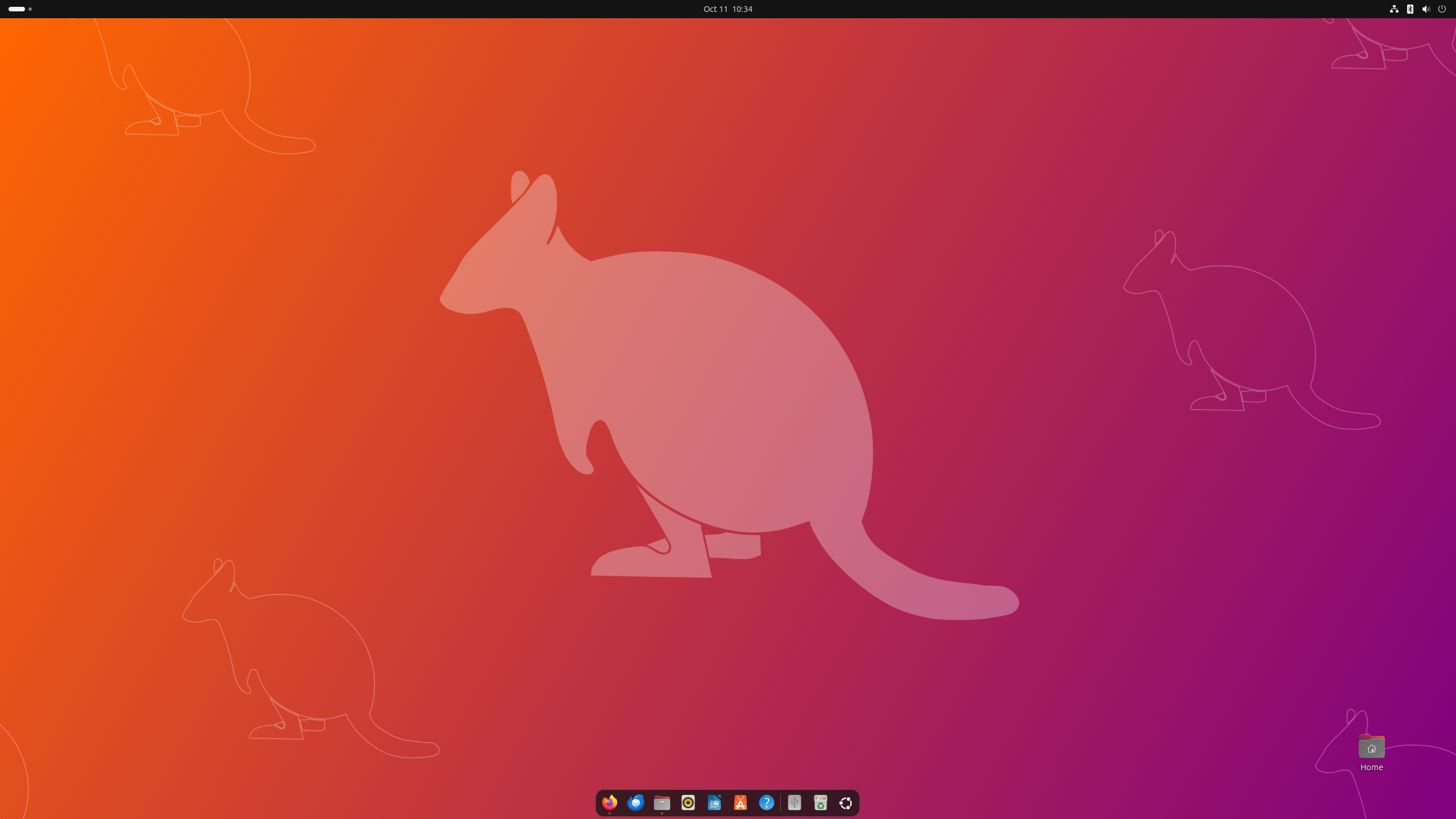
In the world of IT, where hardware becomes obsolete in the blink of an eye, there are certain gems that are hard to part with. For me, one such device is the 27-inch iMac from 2011. Why do I still use it, and why did I decide to breathe new life into it with Ubuntu 25.10? The answer is simple: quality and sentiment.
This model is still a fantastic machine. Its 2K resolution screen (2560×1440) continues to put many modern monitors to shame, and its aluminium chassis is a model of timeless design. Although Apple ended support for it long ago, its components (after a little tuning with an SSD and more RAM) still handle everyday tasks perfectly well. Instead of condemning it to obscurity, I decided to give it a chance with the latest version of Linux.
The Installation Process and the First Hurdle: Flatpak and AppArmor
The installation of Ubuntu 25.10 went surprisingly smoothly. The system detected all the hardware without any issues, and it’s worth noting that the wireless Apple Magic Keyboard (A1644) works flawlessly right after Bluetooth pairing.
However, I hit a snag when I tried to install my favourite browser, Brave, using Flatpak. The terminal greeted me with an error, and the installation stalled.
After a brief investigation, the culprit turned out to be AppArmor – a Linux kernel security module that was, by default, blocking fusermount3, a key component for Flatpak. Interestingly, Ubuntu 25.10 itself did not include the tools to manage AppArmor profiles by default.
Here is the step-by-step solution that allowed me to move forward:
1. Installing the Missing Tools
The aa-complain command, which switches a security profile to “complain” mode (reporting but not blocking), was not available. It was necessary to install the apparmor-utils package.
sudo apt update
sudo apt install apparmor-utils
2. Switching the fusermount3 Profile to “Complain” Mode
Once the tools were installed, I could finally issue the command that instructs AppArmor to stop blocking Flatpak’s mount operations.
sudo aa-complain fusermount3
3. Retrying the Brave Installation
With fusermount3 unblocked, the installation of Brave via Flatpak finally completed successfully.
flatpak install flathub com.brave.Browser
This is a minor but crucial fix to remember if you encounter similar problems with Flatpak applications on a fresh Ubuntu installation.
What’s new in Ubuntu 25.10 “Questing Quokka”?
As an interim release, version 25.10 brings a number of significant and bold changes that modernise the system. Here are the most important ones:
- Newer Linux Kernel 6.17: The heart of the system, bringing better support for newer hardware (including Intel Panther Lake platforms, ARM and RISC-V processors), performance optimisations, and key security fixes. It’s worth noting that support for the bcachefs file system has been removed from the main branch of this kernel version. The installer still offers proven options like Ext4, XFS, and Btrfs.
- GNOME 49: The latest version of the desktop environment with an improved interface, media controls on the lock screen, and better notification management.
- New Default Applications: Ptyxis and Loupe: Ubuntu says goodbye to some classics. GNOME Terminal has been replaced by Ptyxis – a modern terminal emulator based on GTK4 with better container integration. Meanwhile, the Eye of GNOME image viewer has been replaced by Loupe, written in Rust, offering GPU acceleration and a modern look.
- A Complete Switch to Wayland: This is a big step forward. Ubuntu 25.10 no longer offers an X11 (Xorg) session by default. Wayland becomes the sole standard, aiming to improve security and performance. Older applications continue to work thanks to the XWayland compatibility layer.
- sudo-rs for Enhanced Security: The traditional
sudocommand has been replaced bysudo-rs– an implementation written in Rust, which guarantees greater security and resilience against memory-related errors. The classicsudois still available to ensure compatibility. - Dracut as the Default Initramfs Generator: This replaces
initramfs-tools, aiming to speed up and streamline the system boot process.
A Deeper Look at What’s New in Kernel 6.17
Kernel 6.17 deserves its own section as it introduces changes that are particularly beneficial for users of older hardware like this iMac. Besides support for the latest processors and graphics cards, which we won’t benefit from anyway, there are a few gems:
- Extended SSD Lifespan: The most significant change is the kernel’s ability to efficiently zero out blocks on NVMe and SCSI drives without actual write operations. This means less wear on the memory cells and, in theory, a longer life for the SSD – which is crucial in a computer that has likely undergone such an upgrade.
- EXT4 Filesystem Speed Boost: Ubuntu’s default filesystem has received significant improvements in block allocation scalability. In practice, this means a noticeable performance boost during operations on a large number of files, such as copying folders or working with databases.
- Proxy Execution Support: This new feature aims to reduce latency in desktop applications. It solves “priority-inversion problems,” which, in short, means the system becomes more responsive when multiple applications are competing for resources.
A Fresh Look: New Icons and the Yaru Theme
Ubuntu 25.10 also brings a noticeable visual refresh. The default, community-driven Yaru theme has been updated to maintain consistency with the new features in GNOME 49. The changes include:
- New Icons for New Apps: Both
Loupe(image viewer) andPtyxis(terminal) have received their own colourful icons. The Loupe icon is reminiscent of its predecessor, whilst Ptyxis is distinguished by a purple accent. - Redesigned Rubbish Bin: The rubbish bin icon in the Ubuntu Dock has been changed to a more traditional shape, resembling an actual bin.
- New File Icons: Dedicated icons for
.tomland.csvfile types have been added, making them easier to identify in the file manager. - Improved System Icons: Many icons, including those for the System Monitor, Firmware Updater, and battery charging symbols, have been redrawn to be clearer and more consistent with the GNOME style.
A Handy Tip: Configuring Keyboard Shortcuts
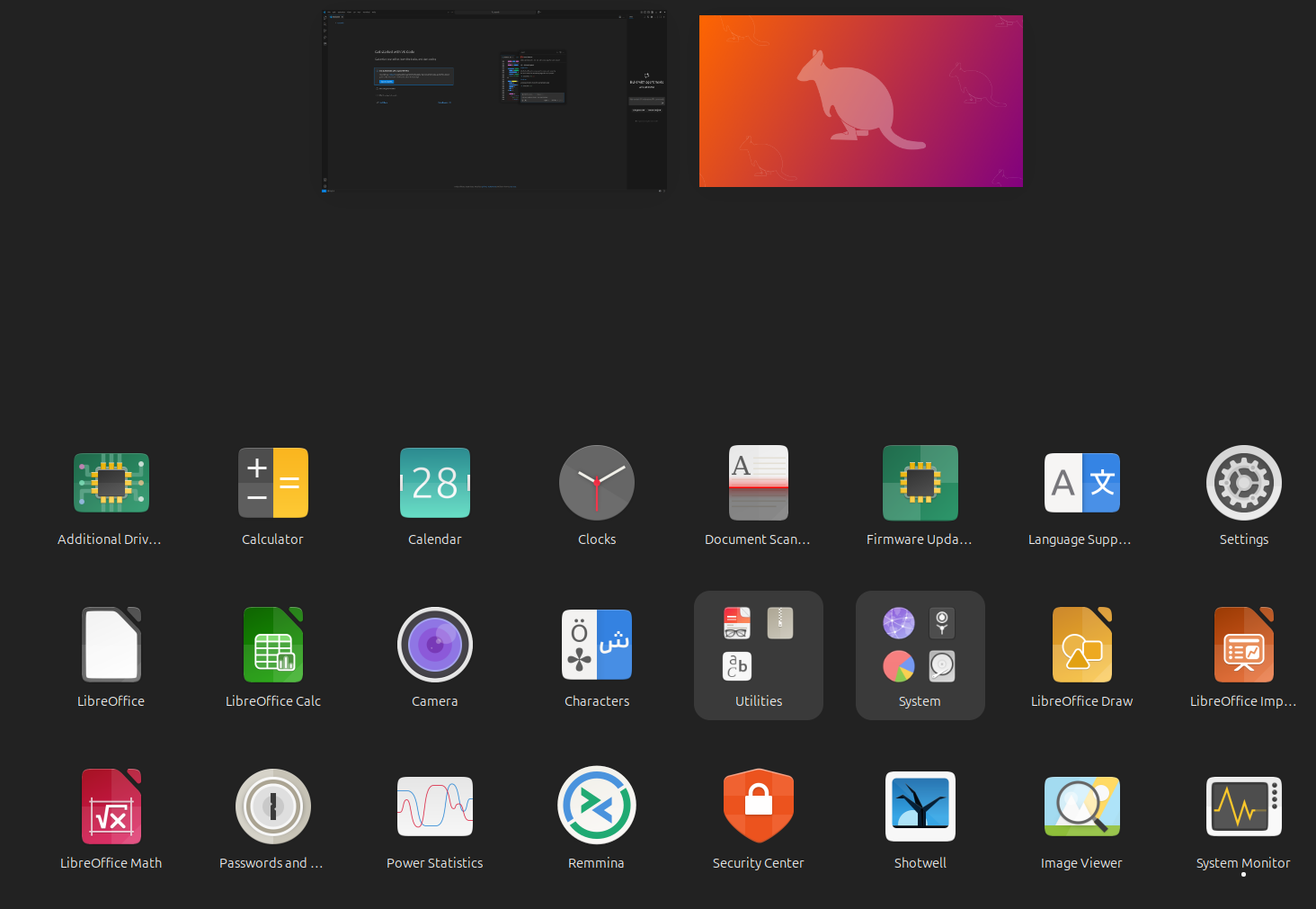
Users of Apple keyboards will quickly notice the absence of certain keys that are standard in the PC world, such as Print Screen. This means the default shortcuts for taking screenshots won’t work. Fortunately, this is very easy to change in Ubuntu.
Here’s how to set your own custom shortcuts:
- Open the system Settings.
- Go to the Keyboard tab in the left-hand menu.
- Click the View and Customise Shortcuts button.
- In the new window, select the Screenshots category.
- Click on the action you want to change (e.g., “Take a screenshot”) and then press your new, preferred key combination.
You can customise any other system shortcut in the same way, tailoring it perfectly to your Apple keyboard layout.
The Cooling Conundrum: Configuring Fans with mbpfan
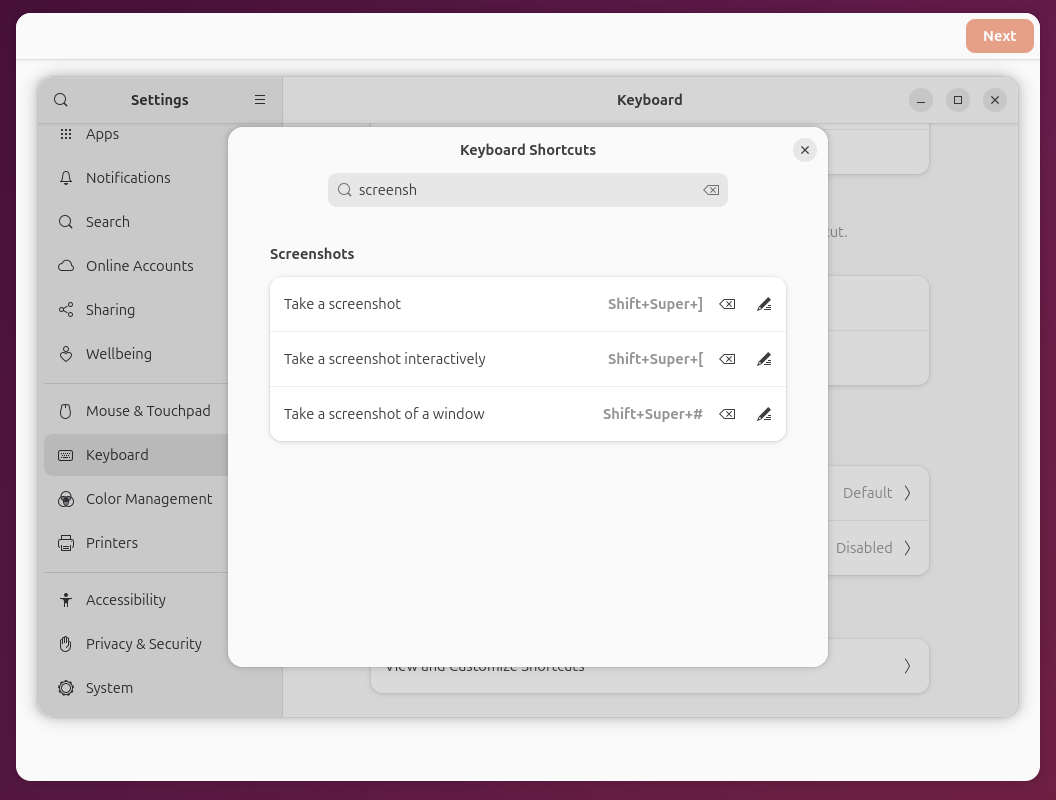
Initially, it seemed that Ubuntu 25.10 handled the iMac’s cooling well. Unfortunately, after extended use, it became clear that the default control was not optimal, and the fans were running louder than necessary. Luckily, there is a tried-and-tested solution – installing and configuring mbpfan.
Unlike MacBooks, which have one or two fans, the 27″ iMac from 2011 is equipped with three. The standard mbpfan configuration is not adapted for this, so we need to adjust it manually.
1. Installing mbpfan
sudo apt install mbpfan
2. Modifying the Configuration File
You need to modify the /etc/mbpfan.conf file to account for all three fans and set the appropriate temperature thresholds and speeds for them.
[general]
min_fan1_speed = 1200
max_fan1_speed = 4400

min_fan2_speed = 1000
max_fan2_speed = 5200

min_fan3_speed = 1200
max_fan3_speed = 4400

# temperature units in celcius
low_temp = 50       # if temperature is below this, fans will run at minimum speed
high_temp = 65      # if temperature is above this, fan speed will gradually increase
max_temp = 86       # if temperature is above this, fans will run at maximum speed
polling_interval = 1
3. Applying the Changes
After saving the file, you need to restart the service for it to load the new configuration.
sudo systemctl restart mbpfan
sudo systemctl status mbpfan.service
With this simple modification, the iMac becomes much quieter, and temperatures are kept at a safe level.
Monitoring Temperatures: lm-sensors
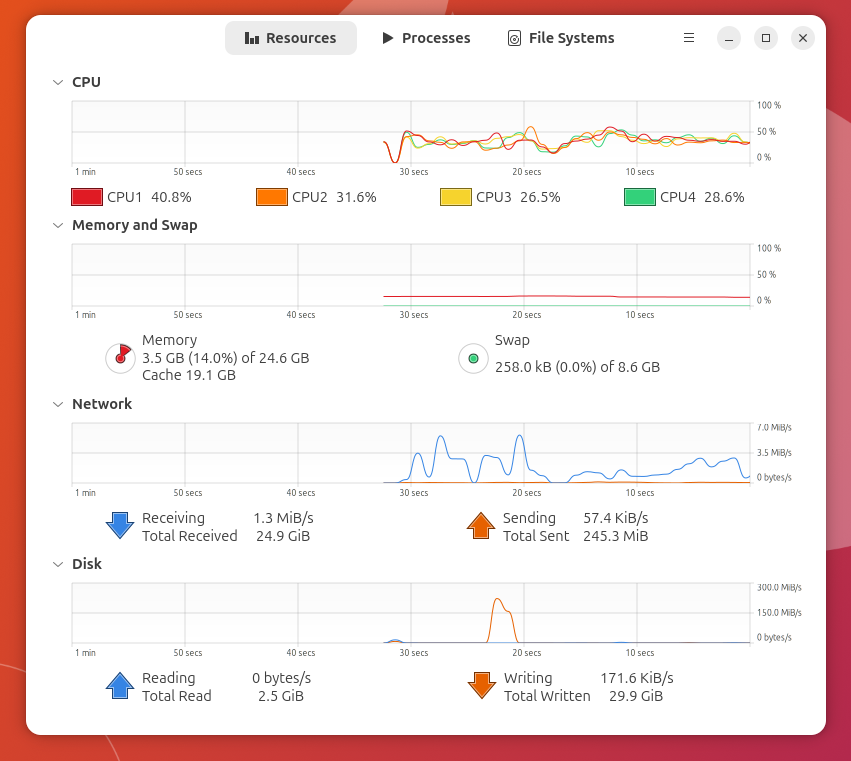
After configuring the fans, it’s a good idea to have a tool to monitor component temperatures in real-time. The lm-sensors package is perfect for this.
1. Installing lm-sensors
sudo apt update
sudo apt install lm-sensors
2. Checking the Readings
After installation, simply type the sensors command in the terminal to get a detailed report from all available sensors, including processor temperatures (Core 0-3), drives, and other components.
sensors
This simple tool is invaluable for diagnosing overheating issues or verifying that your mbpfan configuration is working correctly.
Known Issues and Their Solutions
Unfortunately, it’s not all plain sailing. I encountered one significant problem.
Problem with Hardware Acceleration in Brave (and other Chromium-based applications)
The Brave browser, installed via Flatpak, had serious issues with graphics rendering. YouTube videos would stutter, and the interface could become garbled. The cause is a conflict with the graphics drivers on this old hardware.
Fortunately, the solution is simple – just disable GPU hardware acceleration for the browser. This can be done in two ways:
1. The Temporary Method (for testing):
Launch Brave from the terminal, adding a special flag:
flatpak run com.brave.Browser --disable-gpu
2. The Permanent Method (recommended):
You need to modify the application’s .desktop shortcut file so that the flag is added every time it’s launched.
- Open the file in a text editor, such as
nano:nano ~/.local/share/applications/com.brave.Browser.desktop - Find ALL lines that start with
Exec=. There will be several. - Add
--disable-gputo the end of each of them.
Example:
The line Exec=/usr/bin/flatpak run –branch=stable … com.brave.Browser @@u %U@@
should become:
Exec=/usr/bin/flatpak run –branch=stable … com.brave.Browser –disable-gpu @@u %U@@
After saving the file, the problem will be permanently resolved.
Problems with Drag and Drop
In the context of the new Ubuntu 25.10 release, it is impossible to overlook issues related to the security and isolation of Flatpak applications, which, unfortunately, can create unexpected gaps in basic usability. As it turns out, users of the Brave browser installed via this method may encounter a frustrating bug: the Drag and Drop function does not work correctly between the application and the host system. Tests carried out on both specialised web tools, such as TinyPNG.com, and self-hosted web interfaces (e.g., Mazanoke running on TrueNAS Scale), consistently show a lack of response to attempts to load files using this method. This is a clear regression compared to Firefox, where the same operation is handled flawlessly. This problem most likely stems from the limitations of the Flatpak sandbox regarding access to system files and communication with the Wayland/Xorg server, representing a significant inconvenience for users who heavily rely on Drag and Drop in their daily work. An inspection of the browser’s developer console technically confirms this thesis, often returning a NotFoundError — a clear signal that the application is unable to locate the dragged file on the host system.
As of today, I have not yet found a solution to this problem.
3. Issues with Suspend Mode
One of the most serious problems I encountered after installing Ubuntu 25.10 was the system’s complete refusal to enter Suspend mode. It turns out this is a classic issue with older hardware – in this case, the 2011 iMac has a dedicated AMD Radeon HD 67xxM graphics card that isn’t fully compatible with modern graphics components. The main culprit is a driver conflict: the system, by default, installs libraries for the modern Vulkan API (mesa-vulkan-drivers), which in turn requires the newer amdgpu kernel driver. However, hardware from this generation is correctly supported by the older radeon driver. This incompatibility leads to instability in the graphics subsystem and prevents the card from entering a low-power state, which blocks the entire suspend procedure. Fortunately, the solution is remarkably simple and involves removing the problematic package with a single terminal command:
sudo apt remove mesa-vulkan-driversAfter a reboot, the system will rely entirely on the stable and fully supported OpenGL, and the suspend function will work flawlessly without negatively impacting day-to-day desktop performance.
4. Tackling the Screen Brightness Problem
One of the most persistent problems after installing Ubuntu 25.10 on a 2011 iMac is the broken backlight control. The kernel’s default settings might, admittedly, recognise the F1 and F2 keys and even display a brightness slider, yet the physical screen brightness remains stubbornly unchanged. This happens because the system creates a dodgy driver interface (e.g., radeon_bl1) that isn’t properly connected to the hardware.
After many attempts with the native and vendor parameters, the only effective solution turned out to be forcing the kernel to use the older, generic video driver. To implement this, you must edit the GRUB configuration file. In a terminal, open the file with the command
sudo nano /etc/default/grub and then modify the line GRUB_CMDLINE_LINUX_DEFAULT="quiet splash" to read:
GRUB_CMDLINE_LINUX_DEFAULT="quiet splash acpi_backlight=video"After saving the changes, it is crucial to update the configuration by running the command sudo update-grub, and then rebooting the machine. After the restart, the system should load the correct driver, and the F1 and F2 keys will regain their full functionality.
Conclusion: The Perfect Machine for Work and Play
Is it worth installing Ubuntu 25.10 on a 13-year-old iMac? Absolutely! Despite a few minor hurdles, you get a modern and secure system. What’s more, this ageing hardware, with Linux on board, turns out to be a fantastic platform for specific uses.
- For Programming: Visual Studio Code runs perfectly on it. The large 2K screen provides a huge workspace, and the performance is more than sufficient for compiling code and working with multiple files.
- For Retro Gaming: Thanks to applications like RetroArch, the iMac transforms into a powerful machine for emulating classic consoles. Games from yesteryear look and run fantastically on it.
This is proof that good design and the power of open-source software can work wonders, giving great hardware a second, or even a third, lease of life.
Leave a Reply