



Every self-hosting enthusiast eventually faces the same dilemma: how do you get secure and convenient remote access to your applications? Exposing each service directly to the world via a public IP address and opening ports on your router is just asking for trouble. On the other hand, we want access to our tools from anywhere. Today, I’m going to show you my tried-and-tested solution that combines security and convenience, built on TrueNAS SCALE, Tailscale, and Heimdall.
Security Philosophy: Zero Open Ports
The fundamental principle of my home infrastructure is to minimise the attack surface. This means that none of my key applications are directly accessible from the public internet. I don’t create subdomains for them, I don’t forward ports on my router, and I don’t have to worry about the individual security vulnerabilities of each one.
How is this possible? The key is to create a private, virtual network (an overlay network) that includes all my trusted devices – my TrueNAS server, laptops, phone, and even VPS servers. For this, I use a brilliantly simple tool: Tailscale.
My Components
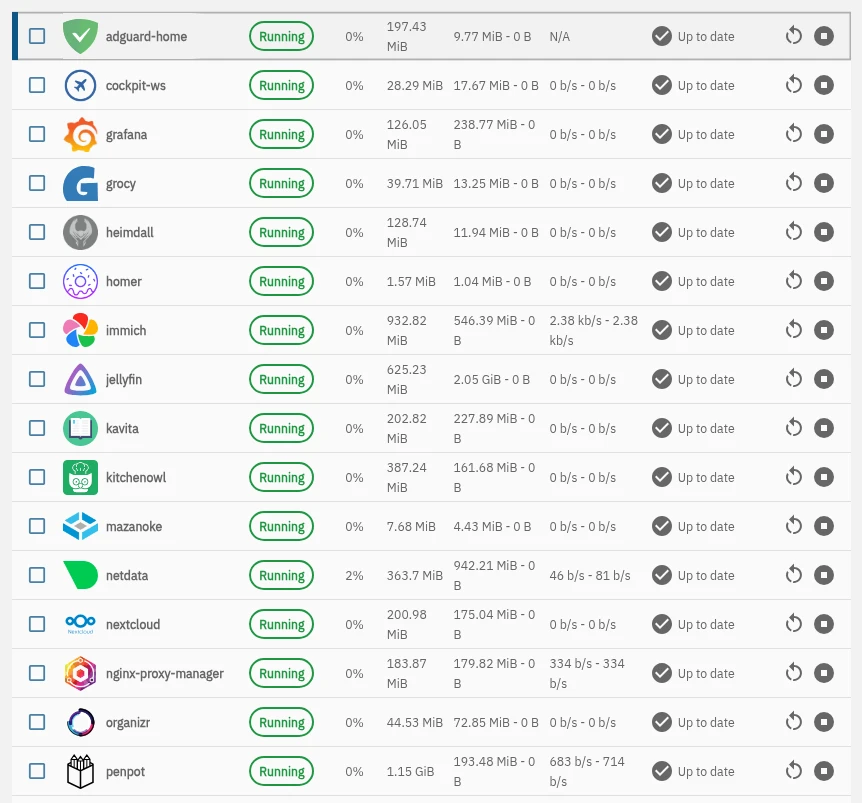
- TrueNAS SCALE: The heart of my home lab. It’s where all my applications run as containers – from Nextcloud and Mazanoke to monitoring tools like Uptime Kuma.
- Tailscale: This is a next-generation virtual private network (VPN) based on WireGuard. Its magic lies in its ability to create a flat, secure network after installation on each device, where all machines can see each other as if they were on the same physical LAN, regardless of their actual location. Crucially, Tailscale runs as a dedicated application on TrueNAS SCALE.
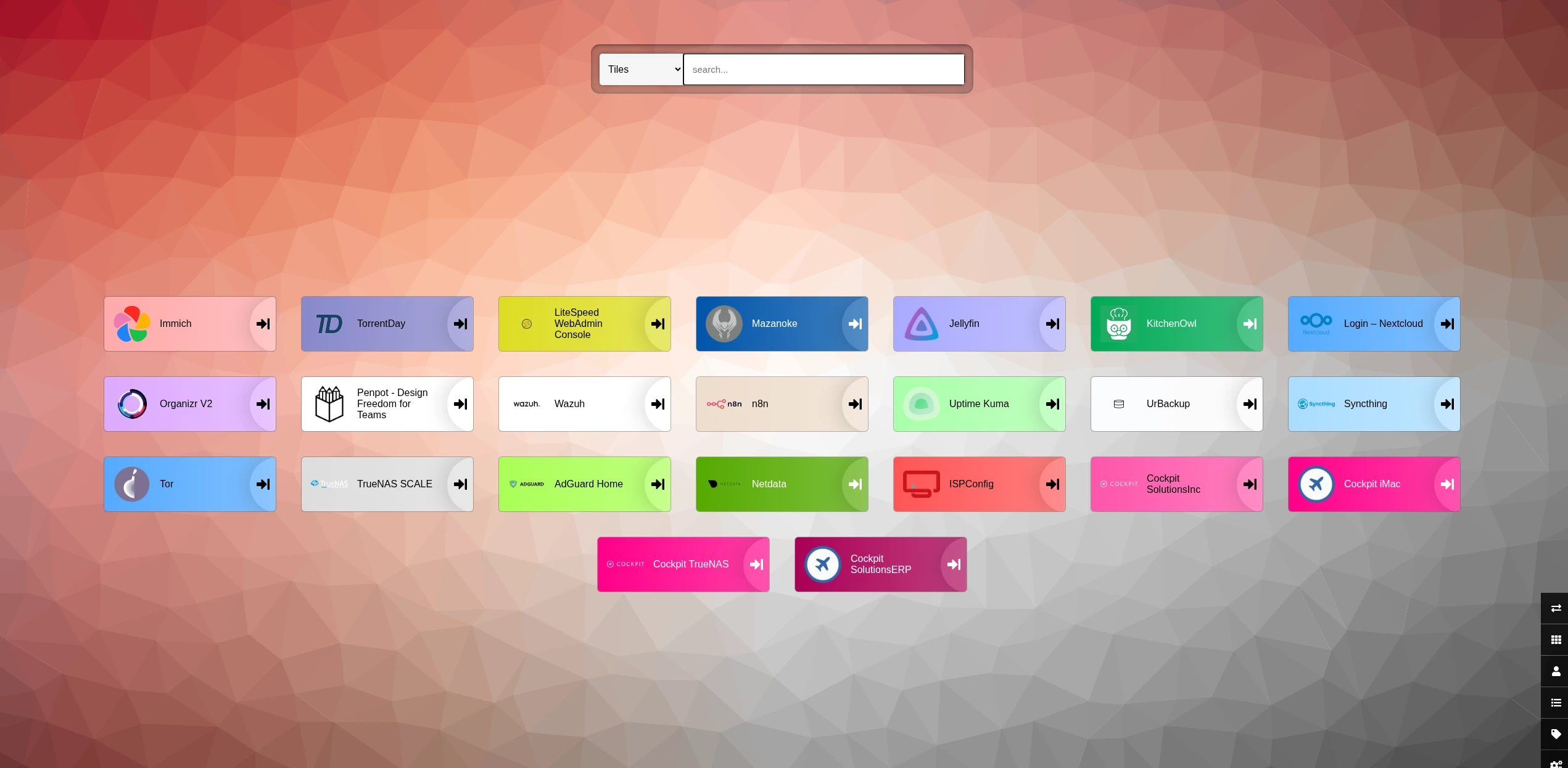
- Heimdall: My command centre. It’s a simple yet aesthetically pleasing dashboard that gathers links to all my services in one place. Instead of remembering dozens of IP addresses and ports, I just go to one page and have everything at my fingertips.
How It Works in Practice: A Step-by-Step Guide
The setup is surprisingly straightforward and relies on one fundamental rule: only Heimdall is “visible” to the outside world in any way; everything else lives exclusively on the secure Tailscale network.
- Installing Applications on TrueNAS: I install all the tools I need (Jellyfin, AdGuard, Nextcloud, etc.) directly from the TrueNAS app catalogue. Each one runs on its own internal port.
- Creating the Private Network: I install the Tailscale app on TrueNAS and authorise the server in my account. Then, I install Tailscale clients on my laptop, phone, and any other device I want to have access from. From that moment on, all these devices have their own unique IP address in the
100.x.x.xrange and can communicate with each other. - Configuring the Heimdall Dashboard:
- I install Heimdall as another application on TrueNAS.
- I create a subdomain for it, e.g.,
heimdall.mydomain.co.uk, and use Nginx Proxy Manager (also an app on TrueNAS) to direct traffic to Heimdall’s internal IP address and port. This is the only entry in my proxy manager! I secure it with a Let’s Encrypt SSL certificate. - I add strong authentication to it (a username and password).
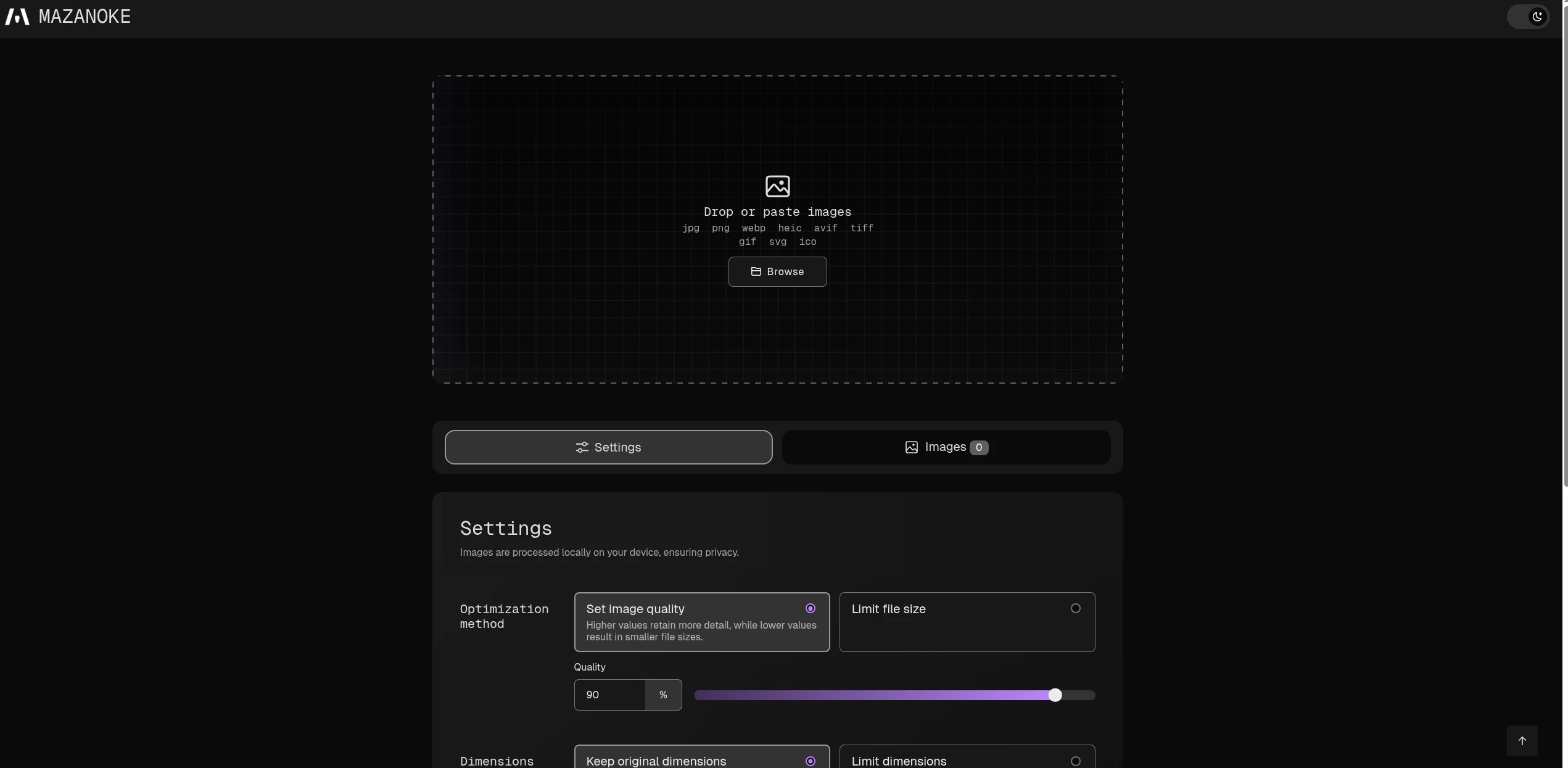
- Adding Links to Applications: This is the crucial part. When I add a shortcut to, say, Mazanoke in Heimdall, I don’t use a public domain as the URL. Instead, I enter the local IP address of my TrueNAS server and the port number on which the application is running. For example:
http://192.168.0.13:8080.
The End Result: Security and Convenience
So, what does my typical day look like now?
- I’m away from home, perhaps at a coffee shop. I start Tailscale on my laptop with a single click.
- I open my browser and go to
heimdall.mydomain.co.uk. - I log in to my dashboard.
- I click on the Mazanoke icon. The browser redirects me to
http://192.168.0.13:8080. - It just works! Because my laptop is on the Tailscale network, it communicates with the TrueNAS server via its local IP address without a hitch, just as if I were at home.
Someone who isn’t logged into my Tailscale network and tried to visit http://192.168.0.13:8080 would see absolutely nothing. To the rest of the world, these applications simply don’t exist.
Summary
This approach gives me the best of both worlds:
- High Security: I’m not exposing a dozen different applications to the internet, only a single, password-protected entry point.
- Incredible Convenience: I have access to everything from anywhere, and it all works seamlessly in the background without needing to manually configure a VPN each time.
- Simple Management: I don’t have to create and remember tens of subdomains. Everything is in one place, accessible via a local IP.
If you’re looking for a solid way to secure your home server, I highly recommend giving this setup a go. It’s simple, elegant, and most importantly, devilishly effective.
Leave a Reply