



Anyone who has had to install an operating system, troubleshoot a hard drive, or set up multiple Linux distributions knows the frustration of constantly formatting USB sticks. This ends now. The answer to this problem is Ventoy—an ingenious, free utility that changes how we approach bootable media.
If your IT toolkit includes multiple Windows installers, rescue utilities, and favourite Linux distributions, Ventoy is essential for you.
What is Ventoy and Why is it Revolutionary?
Most traditional tools (like Rufus or UNetbootin) operate by “burning” an ISO image onto a USB stick. This means the drive is formatted, and the files are copied in a specific way that makes it bootable, but it can only hold one system. Want to add another? You must re-format and start over.
Ventoy works completely differently:
- You install Ventoy just once onto your USB drive.
- It creates a universal bootloader on the drive.
- After installation, you simply copy the ISO files directly to the main directory on the drive, treating it like any regular data storage medium.
Ventoy automatically scans the drive, finds all .iso, .wim, .img files (and many others), and presents them in a dynamic, attractive boot menu.
Key Advantages: Efficiency and Versatility
| Ventoy Feature | User Benefit |
| No Formatting | Add or remove operating systems in seconds, without needing to re-format the entire drive. |
| Multiboot Capability | One drive can hold hundreds of operating systems (Linux, Windows, rescue tools, diagnostic images). |
| Large ISO Support | Handles files larger than 4 GB without any issue. |
| Compatibility | Supports both Legacy BIOS and UEFI (including Secure Boot—though with minor caveats, discussed below!). |
| Linux Support | Ideal for Linux environments (e.g., Ubuntu), offering both CLI and WebUI management tools. |
Practical Use Cases for Ventoy: The Digital Rescue Centre
A Ventoy USB drive is, effectively, the Swiss Army Knife for every IT administrator. Instead of being limited to system installation, you can load it with a complete arsenal of diagnostic, data recovery, and disk management tools. All you need to do is copy the tool’s ISO file onto the Ventoy partition.
The Power of Windows PE: MediCat USB Example
Compared to other solutions, images based on the Windows Preinstallation Environment (WinPE), such as the popular MediCat USB, offer the most comprehensive set of tools within a familiar graphical environment. By simply copying the MediCat ISO to Ventoy, you gain access to an impressive list of utilities for diagnostics, recovery, and daily maintenance.
1. Cloning, Image Creation, and System Restoration
These images allow work at the disk sector level, which is critical during system failure.
| Tools | Description and Use |
| R-Drive Image 7.3 | Professional disk imaging and data restoration. Ideal for disk cloning and rapid system deployment. |
| AOMEI Backupper 8.0, Macrium Reflect 10.0, Hasleo Backup Suite 5.4 | A suite of modern tools for creating and restoring full partition images (Image Backup), including system partitions. |
| Symantec Ghost 12.0 / Drive SnapShot 1.50 | Classic and reliable tools for creating snapshots and images of hard drives, still common in enterprise environments. |
2. Partition Management and Data Recovery
Essential for file system issues, incorrect partitioning, or accidental data deletion.
| Tools | Description and Use |
| EaseUS Partition Master, AOMEI Partition Assistant, MiniTool Partition Wizard | Leaders in partition management. Allows resizing, merging, splitting, conversion (MBR/GPT), and formatting partitions without data loss. |
| DiskGenius 6.0.1 | Comprehensive tool for disk management and data recovery, often used to repair corrupted partition tables. |
| R-Studio 9.5, EaseUS Data Recovery, Active File Recovery | The most powerful software for deep scanning and recovering lost files, partitions, and rebuilding RAID arrays. |
| Active Partition Recovery 25.1.2 | Specialized tool for recovering accidentally deleted or damaged partitions. |
3. Diagnostics, Security, and Testing
Quick verification of hardware stability, disk health, and system security.
| Tools | Description and Use |
| AIDA64 8.00, HWiNFO 8.30, CPU-Z 2.16 | Full hardware diagnostics. Quick checks of components, temperatures, clocks, and overall system health without booting the main OS. |
| CrystalDiskInfo 9.7.2 / CrystalDiskMark 9.0.1 | Monitoring disk health (SMART) and measuring read/write performance of SSDs/HDDs. |
| MemTest86 11.5.1000 (UEFI) | Basic and advanced RAM testing to detect instability and hardware errors. |
How to Prepare Your Ventoy Drive (Quick Guide)
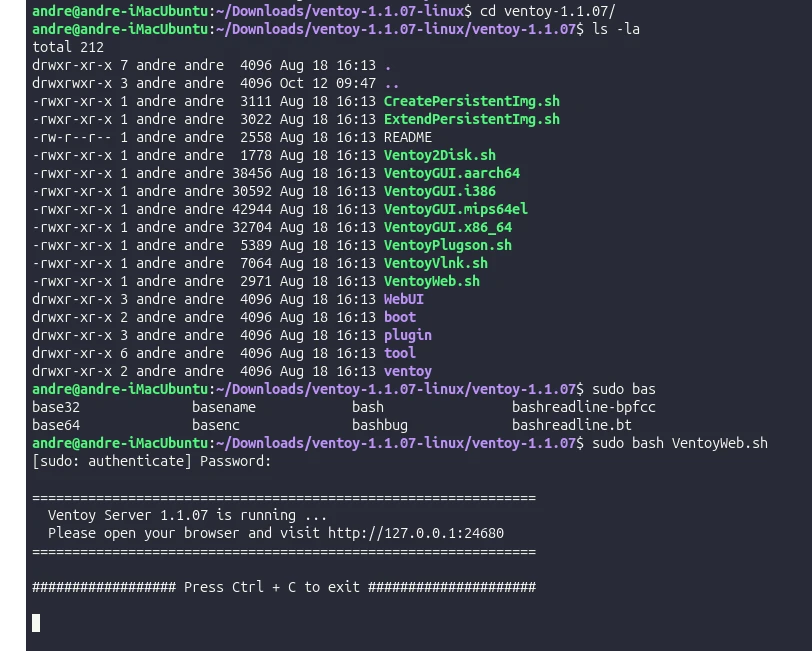
Although Ventoy is available for Windows, it is most conveniently managed from a Linux system (e.g., Ubuntu) using the graphical WebUI interface.
- Download: Grab the
.tar.gzpackage from the Ventoy website (Linux section). - Installation: Run the
VentoyWeb.shscript (e.g., viasudo bash VentoyWeb.sh) and open the specified local address (http://127.0.0.1:24680) in your browser. - Settings Choice: Select your USB stick. It is crucial for modern hardware and Macs to choose the GPT partition style.
- Copying: After installation, simply copy your ISO files into the large Ventoy partition created.
Ventoy and Apple Computers (Advanced Section)
Our tests show that Ventoy handles the specific EFI environment on older Apple computers (e.g., iMac 2011) exceptionally well, but requires two critical steps:
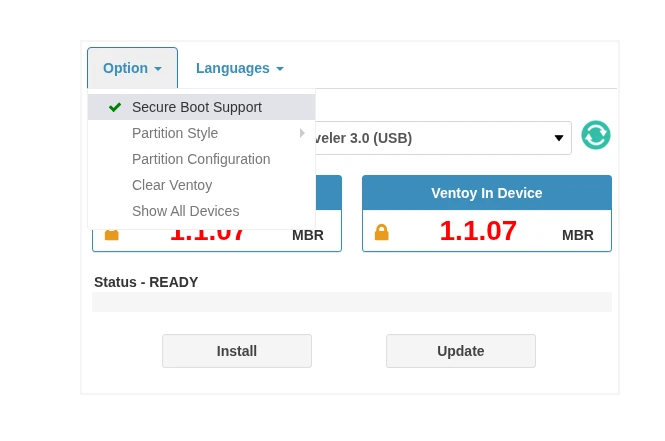
- GPT, Not MBR: Always install Ventoy using the GPT partitioning scheme to increase compatibility with Mac’s EFI systems.
- Disable Secure Boot: Although the Mac doesn’t have standard Secure Boot, Ventoy may attempt to enforce it. To avoid the “Not a Secure Boot Platform” error, uncheck the “Secure Boot Support” option during Ventoy installation/update.
- GRUB Mode for Compatibility: If a system ISO fails to boot in Normal Mode, return to the Ventoy menu and select Boot in grub2 mode. This alternative boot mechanism often resolves compatibility issues with specific ISO images.
Summary
Ventoy is a powerful utility that every IT professional should have in their toolkit. It not only saves significant time by eliminating constant reformatting but also offers unparalleled flexibility in managing operating systems. In an era where system images are constantly growing, having one universal medium is invaluable.
If you are not yet using Ventoy, we highly recommend you try it out. It is a tool that, once set up, simply works flawlessly.
Leave a Reply