




When Hope Isn’t Enough as a Backup Strategy
Every TrueNAS user knows that feeling: hours spent carefully configuring the perfect suite of applications—Nextcloud for file synchronisation, Jellyfin for media streaming, Paperless-ngx for document archiving. The server runs like a dream, and your digital life is finally organised. Yet, in the back of your mind, a worrying thought lurks: what if the drive fails one day, an update goes sideways, or you accidentally delete a critical configuration?
Relying solely on the data integrity provided by the ZFS file system is not a backup strategy. True data security is built upon the professional 3-2-1 rule: having at least three copies of your data, stored on two different media types, with one copy kept in an off-site location.
This guide will transform your apprehension into confidence, leading you step-by-step through the process of implementing a comprehensive, two-pronged backup strategy for your applications in TrueNAS SCALE. We will build two complementary systems:
- A Local ‘Fortress’ (Disaster Recovery): A weekly, full, bit-for-bit copy of the entire application ecosystem, saved as a single file on a USB drive. This is your ‘atomic’ option, allowing you to restore everything after a catastrophic failure.
- A Daily Cloud ‘Time Machine’: An automated, daily synchronisation of application files with Google Drive. This is your insurance policy against minor mistakes, allowing for instant recovery of a single file or configuration.
Let’s get started. Once you complete this tutorial, your data will be safer than ever before.
The First Hurdle: Discovering the True Location of Application Data
Before we can start backing anything up, we must answer a fundamental question: where does TrueNAS SCALE actually store our application data? Intuitively, we would look for it in the Graphical User Interface (GUI), but for security and stability reasons, the system deliberately hides these critical datasets.
The key to uncovering the truth is to use the Command Line Interface (CLI) and understand a fundamental ZFS file system concept that is often a source of confusion.
Dataset Name vs. Mount Point: Two Faces of the Same Data
ZFS operates on two distinct, yet interconnected, concepts:
- Dataset Name: This is the official, unique name within the ZFS structure. We use it for all management operations, such as creating snapshots or replication. For applications in modern TrueNAS SCALE versions, this name is
Pool1/ix-apps(assuming your main pool is calledPool1). - Mount Point: This is the physical path in the server’s file system where we can browse files using commands like
cdorls. For the application dataset, this path is/mnt/.ix-apps.
Misunderstanding this difference leads to frustration. Trying to navigate to cd Pool1/ix-apps/app_configs will result in an error because the file system does not know that path. The correct command is:
cd /mnt/.ix-apps/app_configs
We can see this relationship for ourselves by executing the command zfs list | grep '.ix-apps' in the terminal. The output will clearly show the mapping between the NAME column (dataset name) and the MOUNTPOINT column (mount point).
Armed with this fundamental knowledge, we are ready to build our first, armoured line of defence.
Strategy 1: The ‘Ironclad’ Local Backup to a USB Drive
This strategy is our ultimate safety net. Its purpose is not to recover individual files, but to ensure the ability to restore the entire application environment from scratch after a catastrophic failure of the main disk pool. We will create a fully automated process that weekly generates a single, portable file containing a bit-for-bit, perfect copy of all your applications.
3.1. Preparing the USB Drive for Service
First, we must properly prepare our medium. Plug the USB drive into the TrueNAS server and follow these steps in the web interface:
- Go to Storage -> Pools and click Add.
- Create a new pool. Name it
TrueNAS_Backup. Select your USB drive and move it to the Data Vdevs section. Choose Stripe as the Vdev type, as we only have one drive. Confirm the pool creation (this will erase all data on the drive). - Inside the newly created
TrueNAS_Backuppool, create a new Dataset. Name itapps-snapshots. It is important not to use names starting with theix-prefix, as it is reserved for the system and will cause a validation error. - For Dataset Preset, select the Generic option. This is the ideal choice for simple file storage, without the unnecessary configuration overhead introduced by presets like SMB.
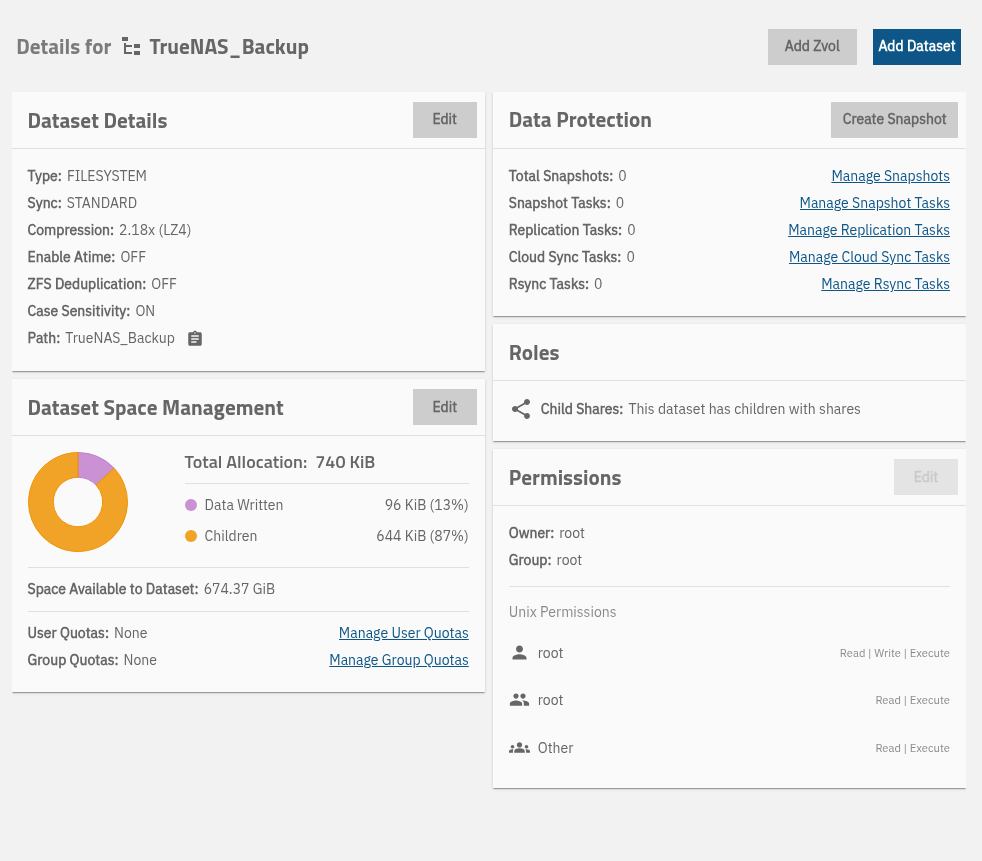
3.2. Performance Tuning: Optimising the Record Size
Before saving the dataset, we will make one crucial optimisation. In the advanced options, find Record Size. The default is 128 KiB, which is a universal setting. However, our goal is very specific: we will be writing single, very large files (multi-gigabyte snapshot streams). In this scenario, a much larger record size is far more efficient, as it reduces the amount of metadata the system has to process.
Change the Record Size value to the largest available, which is 1M (or 16M if your system version allows it). This is a deliberate optimisation that will significantly accelerate the process of writing our backup copy.
3.3. The Automation Engine: backup_apps_to_usb.sh Script
The heart of our system will be a simple yet powerful shell script. Since the nano editor may be missing in some TrueNAS installations, we will use the universal vi. Open Shell in the TrueNAS interface and execute:
vi /mnt/Pool1/scripts/backup_apps_to_usb.shPress the i key to enter insert mode, then paste the code below:
#!/bin/bash
# --- CONFIGURATION ---
# Dataset name to backup
DATASET_TO_BACKUP="Pool1/ix-apps"

# USB Pool and Dataset name where the backup is saved
POOL_USB="TrueNAS_Backup"
DATASET_USB="apps-snapshots"

# How many recent backups to keep on the USB drive
COPIES_TO_KEEP=4
# --------------------

# Full path to the target directory
TARGET_DIRECTORY="/mnt/${POOL_USB}/${DATASET_USB}"

# Name of the temporary snapshot
SNAPSHOT_NAME="backup_to_send_to_usb"

# Full snapshot name including the dataset
FULL_SNAPSHOT_NAME="${DATASET_TO_BACKUP}@${SNAPSHOT_NAME}"

# Target file name with today's date
TARGET_FILE="${TARGET_DIRECTORY}/backup-$(date +"%Y-%m-%d").zfs"

echo "--- Starting Application Backup to USB ---"

# 1. Create a new, clean snapshot (first delete the old one if it exists)
echo "1/4: Creating a fresh snapshot..."
zfs destroy -r "${FULL_SNAPSHOT_NAME}" 2>/dev/null || true
zfs snapshot -r "${FULL_SNAPSHOT_NAME}"

# 2. Send the snapshot to a file on the USB drive
echo "2/4: Writing snapshot to file: ${TARGET_FILE}"
zfs send "${FULL_SNAPSHOT_NAME}" > "${TARGET_FILE}"

# 3. Delete the temporary snapshot from the main pool to avoid clutter
echo "3/4: Deleting temporary snapshot from Pool1..."
zfs destroy -r "${FULL_SNAPSHOT_NAME}"

# 4. Delete the oldest backup files from the USB, leaving the defined number of copies
echo "4/4: Cleaning old copies on USB..."
ls -tp "${TARGET_DIRECTORY}" | grep -v '/$' | tail -n +$((COPIES_TO_KEEP + 1)) | xargs -I {} rm -- "${TARGET_DIRECTORY}/{}"

echo "--- USB Backup successfully completed ---"
To save the file, press Esc, type :wq, and press Enter. Finally, grant the script execution permissions:
chmod +x /mnt/Pool1/scripts/backup_apps_to_usb.shThis script will automatically:
- Create a temporary, consistent snapshot of all application data.
- Use the
zfs sendcommand to convert this snapshot into a highly efficient data stream and save it as a single.zfsfile on the USB drive. - Clean up after itself by deleting the temporary snapshot.
- Manage space on the USB drive by automatically deleting the oldest copies, leaving only the four most recent ones.
3.4. Set and Forget: Scheduling the Weekly Cron Job
The final step is full automation. Go to System Settings -> Advanced Settings -> Cron Jobs and configure the task according to the table below, which reflects a tested and working configuration.
| Setting | Value | Description |
|---|---|---|
| Description | Weekly full application backup to USB | |
| Command | /mnt/Pool1/scripts/backup_apps_to_usb.sh | |
| User | root | |
| Schedule | Weekly (e.g., every Sunday at 02:23) | |
| Hide Stdout/Stderr | Ticked |
Once saved, your local backup system is ready. Every week, without any intervention, a new, complete copy of your applications will land on the USB drive, providing you with ironclad security.
Strategy 2: The Daily ‘Lifesaver’ – Cloud Backup to Google Drive
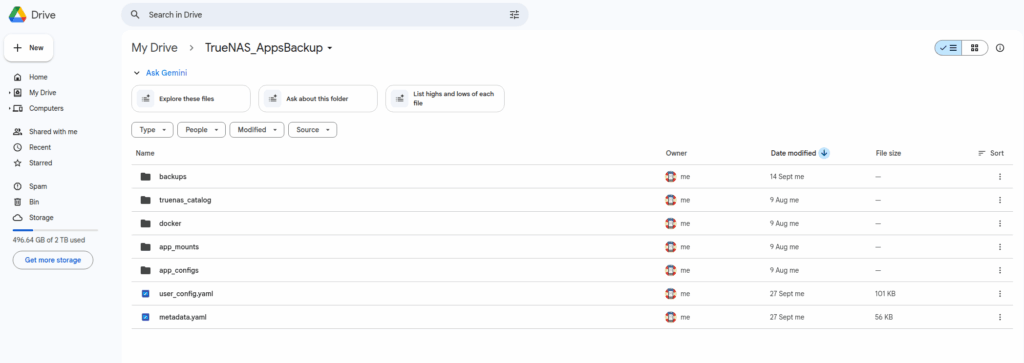
A local backup is the foundation, but true peace of mind only comes with an off-site copy, which protects data against fire, theft, or other catastrophic events at the server’s location. This strategy focuses on daily synchronisation of application files with Google Drive, which is ideal for quick recovery of individual configuration files or data.
4.1. The Golden Rule: Never Copy ‘Live’ Application Data
Before configuring, we must understand the most important principle: copying application files that are in continuous use is a straightforward path to a corrupted and useless backup. Every second, your applications are writing data to databases, logs, and configuration files. Attempting to copy them ‘live’ is like taking a photo of a speeding car – the result will always be blurry and inconsistent.
The solution is the ZFS snapshot. It acts like an instant ‘photograph’ of the entire file system, freezing all files in a perfectly consistent state in one nanosecond. It is only from this safe, immutable ‘photograph’ that we will copy data to the cloud. This is the only way to guarantee that our backup will be 100% usable.
4.2. Bypassing the Interface: Manual rclone Configuration
For a reliable configuration, especially across different TrueNAS SCALE versions, the most robust method is often to configure the fundamental tool—rclone—directly from the command line, bypassing the high-level Cloud Sync interface.
- In the TrueNAS terminal, launch the interactive configurator:
rclone config. - Choose n (New remote) to create a new connection.
- Name it
GDriveBackup. - Select Google Drive from the list.
- Leave
client_idandclient_secretblank (press Enter). - For
scope, choose 1 (full drive access). - Leave
root_folder_idandservice_account_fileblank. - When asked Use auto config? answer n—this is crucial as we are operating on a server without a graphical browser.
rclonewill display a link. Copy it and open it in a browser on your computer. Log in to your Google account and grant access.- Google will display a verification code. Copy it and paste it back into the TrueNAS terminal.
- Confirm the configuration by typing y (Yes), and then quit by typing q (Quit).
To verify that everything is working, execute the command rclone ls GDriveBackup:. If a list of files and folders from your Google Drive appears on the screen, the connection is 100% operational.
4.3. The Final Synchronisation Script: sync_to_gdrive.sh
The virtual file system for snapshots (.zfs/snapshot) in this version of TrueNAS presents sub-datasets in a way that can cause problems for standard tools. Neither mount --bind nor rclone with the -L option can correctly interpret the nested dataset structure.
The final, reliable solution is a script that first creates one, temporally consistent snapshot for all applications, and then synchronises each of the key subdirectories (which are separate datasets) individually, referring directly to their own snapshots.
Create the script:
vi /mnt/Pool1/scripts/sync_to_gdrive.sh
And paste the code from the generated file into the editor.
Save the file and grant it execution permissions:
chmod +x /mnt/Pool1/scripts/sync_to_gdrive.sh
4.4. Full Automation: The ‘All-in-One’ Cron Job
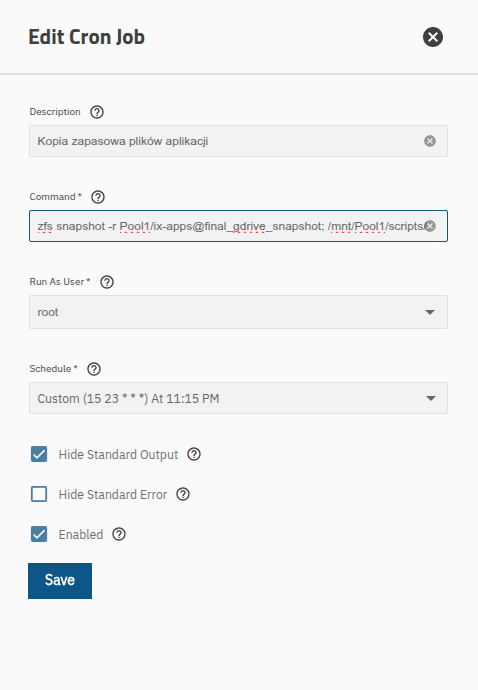
The last piece of the puzzle is the Cron job that orchestrates the entire process. It will consist of two commands: first, it will create the consistent snapshot, and immediately after, it will run our synchronisation script.
| Setting | Value | Description |
|---|---|---|
| Description | Full application backup process to Google Drive | |
| Command | zfs snapshot -r Pool1/ix-apps@final_gdrive_snapshot; /mnt/Pool1/scripts/sync_to_gdrive.sh | |
| User | root | |
| Schedule | Daily (e.g., at 02:00) | |
| Hide Stdout/Stderr | Ticked (recommended) |
Conclusion: Achieving Backup Zen
Congratulations! You have navigated a complicated but extremely valuable process, resulting in a professional, multi-layered data protection system. Your applications are now protected by two complementary strategies:
- USB Backup: A weekly, full, local backup, ready to restore the entire environment after a catastrophic hardware failure.
- Google Drive Backup: A daily, granular, remote backup, ideal for quickly recovering individual files and protecting against the failure of the entire location.
Although the configuration required delving into the command line and bypassing some interface limitations, the resulting system is fully automated, reliable, and provides genuine peace of mind. You can now sleep soundly, knowing your digital life is secure.
Leave a Reply