



It can happen to any of us. You configure a brilliant new service, set a strong, unique password and… you find yourself staring at the login screen with a complete blank. If this has happened to you with Immich, the fantastic tool for self-hosting photos on your TrueNAS Scale server, don’t worry. The solution is just a few steps away.
In the world of self-hosting, there’s almost always a way back via the command line. This guide will show you, step by step, how to regain access to your account.
Why Do Universal Commands Fail?
Immich is a project that develops at an incredible pace. For this reason, the application management commands found in older guides often don’t work in newer versions. The file structure and command syntax change over time.
Therefore, the most reliable method isn’t to guess, but to find the correct file and use the proper, up-to-date command. Below, we’ll show you how to do just that.
Step 1: Accessing the Container Terminal
First, we need to get into the command line of the container where the application server is running.
- Log in to your TrueNAS Scale web interface.
- Navigate to the Apps section.
- Find your installed Immich application and click on it.
- In the application details, locate the Workloads (or Pods) section.
- From the list of pods (containers), the key one has
immich-serverin its name. Click the terminal icon (>_) next to it to open the shell.
Congratulations, you’re now inside the container!
Step 2: Locate the Main Application Script
Instead of guessing the path to the script, we’ll use the find command to locate it. In the terminal, type:
find /usr/src/app -name "main.js"
The system will return a list of files with that name. We are looking for the one located in a path related to the server, for example:
/usr/src/app/server/dist/main.js
Copy this path, as we’ll need it in the next step.
Step 3: Run the Password Reset Command
Now that we know the exact location of the script, we can reset the password. Use the command below, pasting in the path you copied earlier:
node /your/copied/path/to/main.js immich-admin reset-admin-password
For instance, using the path we found earlier, the command will look like this:
node /usr/src/app/server/dist/main.js immich-admin reset-admin-password
After pressing Enter, the application itself will prompt you to enter a new password, and then to confirm it. This is an interactive mode, so we don’t provide the password directly in the command.
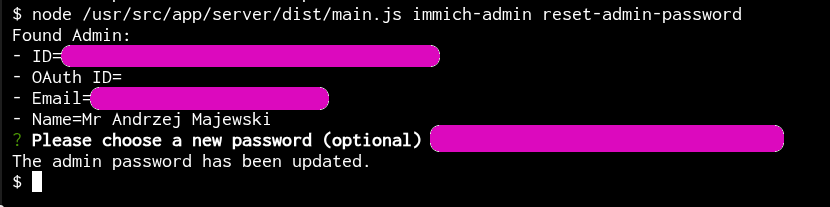
After completing these steps, your admin password will be reset, and you’ll be able to log back into your Immich.
Summary
Although the process might seem complicated at first glance, it’s a perfect example of how to manage applications effectively in the world of Linux and self-hosting. Instead of blindly copying commands, it’s worth learning a few basic tools (like find) that allow you to understand what’s happening “under the hood”. I hope this guide saves you some time and frustration!
Leave a Reply