



If you work with VPS servers, you know that security is fundamental. Logging in with a password is like leaving your house keys under the doormat—it works, but it exposes you to bots and attacks.
The true industry standard is SSH key authentication. It’s not only more secure but also significantly more convenient, as it eliminates the need to type a password every time you connect.
Below is a complete guide on how to switch to keys, how to avoid common pitfalls (like the permission conflicts we often encounter!) and how to manage multiple VPS servers.
Step 1: Generating Dedicated Key Pairs (Locally)
It’s best practice to have a different key pair for each server or project. This ensures that if one key is compromised or leaked, your other servers remain secure.
Generate the key on your local machine (andre-iMacUbuntu), giving it a unique name (e.g., corresponding to the IP or server name).
# We use the ED25519 algorithm (newer and more secure than RSA)
# The private key will be saved as ~/.ssh/key_158_220_88_64
ssh-keygen -t ed25519 -f ~/.ssh/key_158_220_88_64

During generation, you will be prompted for:
- A Passphrase: Highly recommended! This password protects your private key in case it is stolen. You will need to enter it once when adding the key to the SSH agent (see Step 4).
- Location: In our example, this is
~/.ssh/key_158_220_88_64.
Two files will appear in your ~/.ssh directory:
key_158_220_88_64(PRIVATE KEY – keep this safe!)key_158_220_88_64.pub(PUBLIC KEY – upload this to the server)
Alternative Method: Key Generation in Vaultwarden/Bitwarden
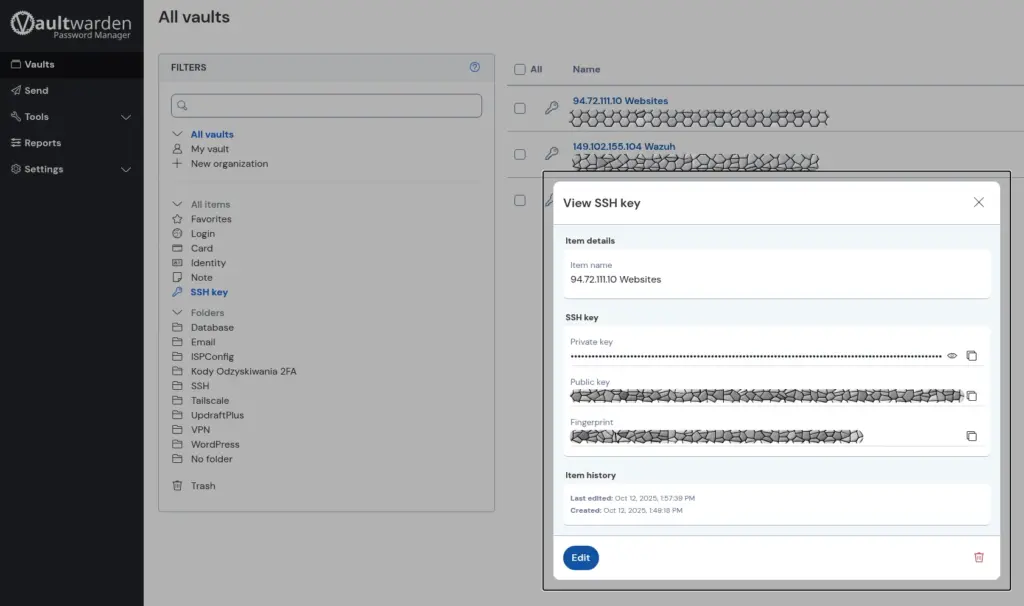
If you use Vaultwarden (or Bitwarden), you can skip manual key generation in the console. Password managers offer a built-in SSH key pair generator, which is extremely convenient:
- Simply create a new item and select the type “SSH Key”.
- The generator creates the key pair (Private + Public) and securely stores the private key encrypted by your master password.
- From the generated key, you only copy its Public part and proceed to Step 3.
Crucial for Continuity of Access: Storing private keys in the Vaultwarden/Bitwarden cloud protects you against hardware failure. If your local machine breaks down and you don’t have a backup of your keys, you will lose access to all servers where password login is disabled. The only solution then is to connect via VNC/KVM console, delete the old keys, and generate new ones. Thanks to Vaultwarden, your private key is always available and secure after logging in on a different device.
Step 2: Configuring the SSH Client (~/.ssh/config)
To avoid typing long commands (ssh -i ... -p ...) every time, create a configuration file that assigns all settings (including the key) to a convenient shortcut.
Create or edit the ~/.ssh/config file on your local machine:
nano ~/.ssh/config
Add a new configuration block for your server (e.g., under the shortcut name my_vps):
Host my_vps
    HostName 158.220.88.64
    User andre
    Port 120
    IdentityFile ~/.ssh/key_158_220_88_64
    IdentitiesOnly yes
    # Force authentication to use only the specified key, ignoring the agent's keys.
From now on, you log in like this: ssh my_vps
Bonus: One-Click Login in Ubuntu Terminal
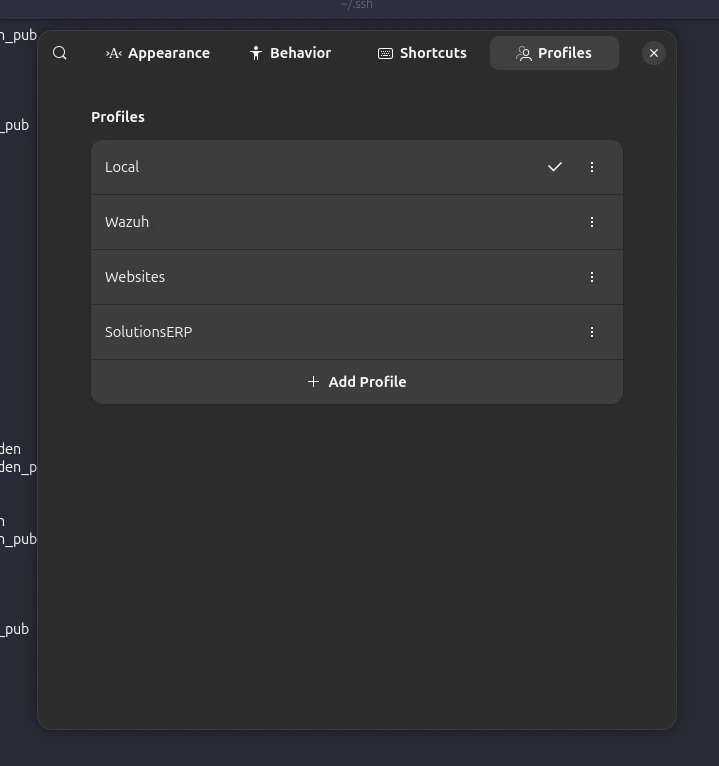
If you use the GNOME Terminal in Ubuntu, you can leverage the Profiles feature to log in with a single click, without the need to type ssh my_vps.
- Open Terminal Settings: Click the hamburger menu (three horizontal lines) or right-click on the terminal window and select “Preferences” (or “Settings,” depending on the version).
- Go to the “Profiles” section and click “Add Profile”.
- In the “Command” tab, in the “Custom command” field, enter:
ssh my_vps - Give the profile a clear name, e.g., “SolutionsERP VPS”.
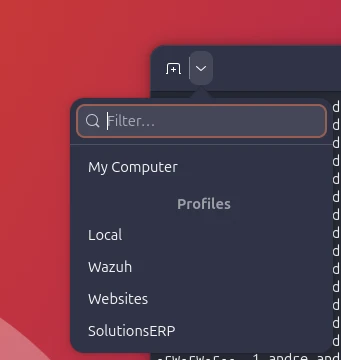
Now, when you open a new terminal, you can quickly switch to this profile from the dropdown list or menu, and the terminal will automatically run the ssh my_vps command, logging you instantly onto the server!
Step 3: Uploading the Public Key to the Server
Use the ssh-copy-id tool, which automatically places your public key into the ~/.ssh/authorized_keys file on the server (you will have to enter the server password one last time):
ssh-copy-id -p 120 -i ~/.ssh/key_158_220_88_64.pub andre@158.220.88.64
If ssh-copy-id is unavailable, use the cat command (you must have password login enabled on the server for this method to work):
cat ~/.ssh/key_158_220_88_64.pub | ssh -p 120 andre@158.220.88.64 'mkdir -p ~/.ssh && chmod 700 ~/.ssh && cat >> ~/.ssh/authorized_keys && chmod 600 ~/.ssh/authorized_keys'
Step 4: Securing Files and Disabling Passwords (On the Server)
After ensuring that key login works, perform two critical steps on the server:
A. Correct File Permissions
Permission issues are the most common cause of errors. SSH is strict: keys and directories must be accessible only to the owner.
Log in to the server and ensure the permissions are as follows:
# The .ssh directory must be accessible only to the owner
chmod 700 /home/andre/.ssh

# The authorized_keys file must be readable and writable only by the owner
chmod 600 /home/andre/.ssh/authorized_keys
B. Disabling Password Login (Closing Security Gaps)
You must edit the SSH server configuration file.
sudo nano /etc/ssh/sshd_config
Set the following directives:
PasswordAuthentication no  # DISABLE password login
PermitRootLogin no         # BLOCK direct root login
Save the file and restart the SSH service:
sudo systemctl restart ssh
WARNING: Do not close the current server session until you have tested the new connection in a new window!
Step 5: Troubleshooting and the SSH Agent
Diagnosing Permission Issues
If you cannot log in with the key after restarting the SSH service, use the verbose mode on the client to see what went wrong:
ssh -v my_vps
If you see an error in the server logs (/var/log/auth.log) like “Authentication refused: bad ownership or modes”, it means you need to re-check the directory permissions (700 for .ssh) and file permissions (600 for keys).
How the SSH Agent Works
The SSH Agent (ssh-agent) is a background programme that keeps your private keys unlocked in RAM after entering the key’s password (passphrase) once. Instead of typing the password every time you connect, the agent uses the key for you.
A common error we saw:
sign_and_send_pubkey: signing failed for ED25519 "/home/andre/.ssh/id_ed25519" from agent: agent refused operation
This error occurs when the agent has multiple keys loaded, but the SSH client attempts to use a default key that:
- Does not match the public key on the server.
- The agent cannot use (e.g., no passphrase was provided).
Solution: Using the IdentitiesOnly yes directive (in ~/.ssh/config) forces the SSH client to ignore everything in the agent and use only the key you explicitly provided in the configuration (IdentityFile).
Final Test: Confirming Password Login is Disabled
After restarting the SSH service, open a new terminal and attempt to log in, deliberately disabling key authentication:
ssh -o PubkeyAuthentication=no -p 120 andre@158.220.88.64
Expected Response: An immediate rejection of the connection.
Permission denied (publickey).
If you see this, you can be sure that no one can log in to your server with a password alone.
Leave a Reply