


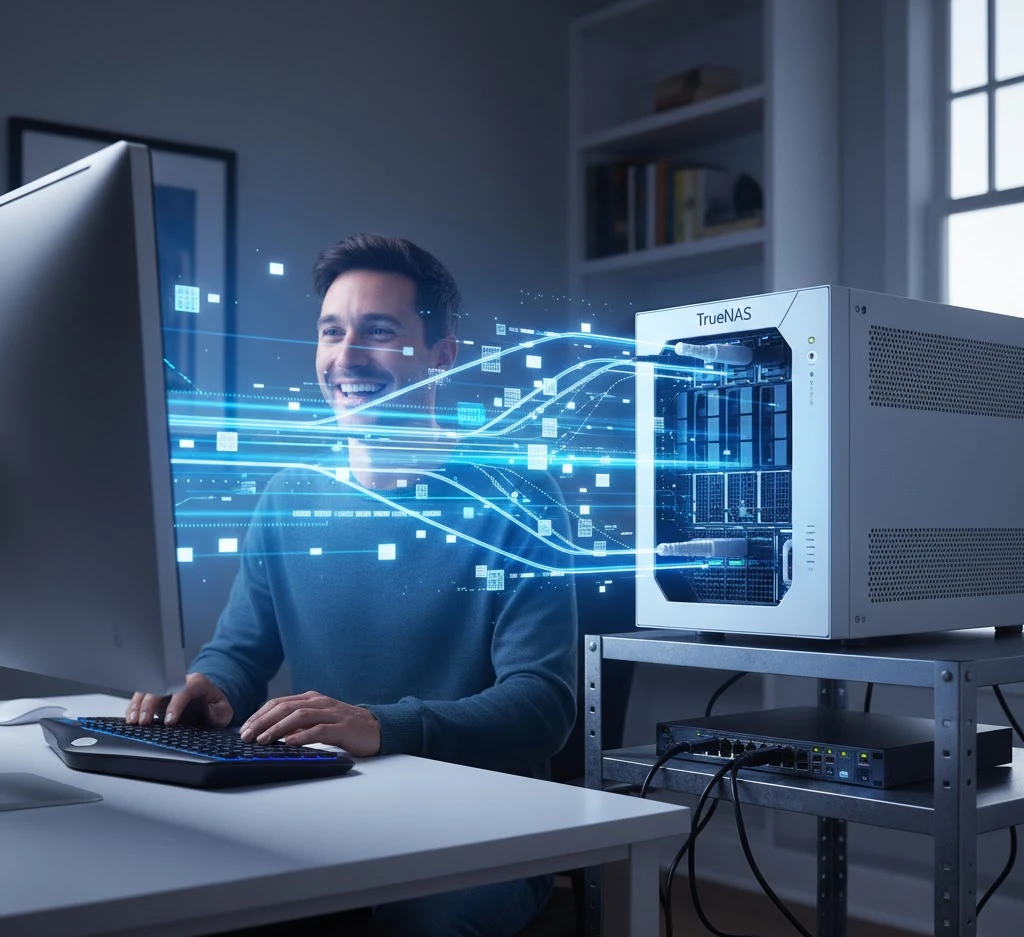

Creating a reliable backup is absolutely critical, especially when working with code (PHP, Python, JavaScript) or managing essential systems, such as an ERP system. A local backup is simply not enough – we need a remote, encrypted solution that is resilient to drive failure.
Duplicati, combined with Docker and a TrueNAS server (utilising SFTP), offers a gold standard solution. While the setup can be tricky, this guide will help you avoid the common pitfalls related to dependencies (libicu) and permissions (Access Denied) that we encountered.
1. Prerequisites and Architecture
We will install Duplicati inside a Docker container on the client machine (your Ubuntu system), and securely transfer the data to the TrueNAS server using the SFTP (SSH) protocol.
Prerequisites:
- Docker installed and configured on your Ubuntu machine.
- SSH Service enabled on TrueNAS.
- A destination folder created on TrueNAS (e.g.,
/mnt/Your_Pool/Duplicati) with write permissions for your SSH user.
2. Launching the Duplicati Container (The Reliable Version)
We will use the popular linuxserver/duplicati image. To prevent start-up failures and permission issues, we must correctly define the volume mappings and environment passwords.
Preparing the Directory and User
Before running the container, ensure your configuration directory exists. The PUID and PGID variables guarantee that Duplicati has full access to your home directory.
# Check your UID and GID (usually 1000)
UID=$(id -u andre)
GID=$(id -g andre)

# Create the directory to store Duplicati's configuration files
mkdir -p /home/andre/duplicati_config
The Docker Run Command
We must use essential environment keys (for launch and web interface password) and two volume mappings (config and source files).
Important: Use your own, strong values for SETTINGS_ENCRYPTION_KEY and DUPLICATI__WEBSERVICE_PASSWORD.
docker run -d \
  --name=duplicati \
  -p 8200:8200 \
  -e PUID=$UID \
  -e PGID=$GID \
  -e SETTINGS_ENCRYPTION_KEY="YOUR_UNIQUE_CONFIG_ENCRYPTION_KEY" \
  -e DUPLICATI__WEBSERVICE_PASSWORD="YOUR_GUI_INTERFACE_PASSWORD" \
  -v /home/andre/duplicati_config:/config \
  -v /home/andre:/source/home/andre \
  --restart unless-stopped \
  linuxserver/duplicati:latest
/config: Persistent storage for the Duplicati database and settings./source/home/andre: Maps your entire home directory (the source) into the container.PUID/PGID: Maps the container process to your user’s UID/GID (andre) to preventAccess Deniederrors when backing up your home folder.
3. Configuring the Backup to TrueNAS
Once the container is running successfully (check docker ps), open your browser.
Step 1: Accessing the Interface
Navigate to: http://localhost:8200
Log in using the password you defined in the DUPLICATI__WEBSERVICE_PASSWORD environment variable.
Step 2: Setting the Remote Repository (Destination)
- Click
Add backupand proceed to the Destination (2) step. - Storage Type: Select
SFTP (SSH). - Server: Enter your TrueNAS IP address (e.g.,
192.168.0.13). - Path on server: Enter the full path to your TrueNAS dataset, e.g.,
/mnt/Your_Pool/Duplicati. - Username/Password: Provide the login details for your SSH user (e.g.,
andre) on TrueNAS. - Click
Test connection— you must see theConnection worked!message.
Step 3: Selecting Source Data
In the Source Data (3) step, you will select the folders you mapped into Docker:
- In the file tree, locate and select the
/source/home/andrefolder. - Select the critical sub-folders (e.g.,
Documents,Projects,SSH Keysin.ssh).
Filters (Crucial for Efficiency): To avoid backing up redundant data (which led to previous issues), add these exclusion rules in the Filters section:
| Filter Type | Filter Path |
Exclude folder | /source/home/andre/.local/share/Trash |
Exclude folder | /source/home/andre/.cache |
Exclude folder | /source/home/andre/Downloads |
Step 4: Setting Options (Retention)
In the Options (5) section, set:
- Remote volume size: 50 MB (or 100 MB).
- Backup retention:
Smart backup retention(The best policy for managing space).
Upon saving, Duplicati will begin creating encrypted, deduplicated, and automatic backups, securing your development environment and data against local drive failure.
Leave a Reply