



Nowadays, many people use location tracking apps like Life360 to know where family members are. They are convenient, but they involve giving your location data to a third-party company. OwnTracks is an open-source alternative that allows you to create your own private location server, giving you full control over your data.
In this guide, we’ll show you how to install and configure OwnTracks on a TrueNAS SCALE server using the “Custom App” feature. We’ll focus on the simpler HTTP communication mode, which has proven less problematic in container environments than MQTT with WebSockets. We’ll also configure secure external access using Nginx Proxy Manager and Cloudflare.
OwnTracks vs. Life360: A Brief Comparison
Before we start, it’s worth understanding the key differences:
OwnTracks:
- Pros:
- Privacy: Your location data is stored only on your server. No one else has access to it.
- Control: Full control over the server, data, and how it’s used.
- Free and Open Source: No subscription fees, the source code is open.
- Flexibility: Can be integrated with other home automation systems (e.g., Home Assistant).
- Cons:
- Requires Your Own Server: You need to own and manage a server (like TrueNAS).
- Configuration: Installation and setup require some technical knowledge (which you’ll gain in this guide!).
- Lacks Some Social Features: Less polished interface and lacks some features known from Life360 (e.g., driving reports, crash detection – although this might also be a privacy advantage).
Life360:
- Pros:
- Ease of Use: Very simple installation and setup.
- Rich Features: Additional options like crash detection, driving reports, SOS buttons.
- Doesn’t Require Your Own Server: Everything runs in the cloud.
- Cons:
- Privacy: Your location data is stored and processed by a third-party company, which may analyse or share it.
- Costs: Many advanced features require a paid subscription.
- Lack of Control: You depend on the company’s privacy policy and service operation.
If you value privacy and already have a TrueNAS server, OwnTracks is an excellent choice.
Prerequisites
Before you start, make sure you have:
- TrueNAS SCALE System: This guide is for the SCALE version.
- An Internet Domain: You’ll need your own domain (e.g.,
yourdomain.com). - Access to Domain DNS Management: We’ll use Cloudflare in this guide.
- Nginx Proxy Manager: Installed and running as an app on TrueNAS.
- Public IP Address: Or a configured Dynamic DNS (DDNS).
- (Recommended) Port Forwarding: Ports 80 and 443 forwarded to the IP address of your Nginx Proxy Manager on your local network.
Step 1: Installing Components on TrueNAS
In this setup, we need two applications running as containers:
- Mosquitto: The MQTT broker. Although we’ll use HTTP mode for sending data from phones,
owntracks/recorderstill requires a connection to an MQTT broker for its internal operation. We’ll configure it to allow anonymous connections from the local network. - OwnTracks Recorder: The application that receives data (via HTTP) and provides the web interface with the map.
Installing Mosquitto
- Go to Apps: In the TrueNAS interface, navigate to
Apps. - Find Mosquitto: Search for the
Mosquittoapp (usually available in the TrueCharts catalogue) and clickInstall. - Mosquitto Configuration:
Application Name: e.g.,mosquitto- Eclipse Mosquitto Configuration:
Timezone: Select your time zone.Enable Persistence: Tick this to keep data between restarts.Allow Anonymous: Tick this. Since Mosquitto won’t be exposed externally, and communication with OwnTracks Recorder happens on the local network, we can simplify the setup by allowing anonymous connections.
- User and Group Configuration: You can leave the defaults (e.g.,
568). - Network Configuration:
- Broker Port: Ensure the
Port Numberis1883. Do not expose this port externally (don’t forward it on your router or configure it in NPM). - Web Sockets Port: You can leave the default or disable it. It’s not needed for this configuration.
- Broker Port: Ensure the
- Storage Configuration:
- Configure
Host PathforMosquitto Data StorageandMosquitto Config Storage, having created appropriate datasets beforehand (e.g.,/mnt/YOUR_POOL/apps/mosquitto/dataand/mnt/YOUR_POOL/apps/mosquitto/config). Ensure theappsgroup has write permissions for them.
- Configure
- (Skip) The
Security Configurationsection or adding users is not needed if you tickedAllow Anonymous. - Resources Configuration: Set low limits, Mosquitto is very lightweight:
Limits CPUs:0.25Memory (in MB):128
- Click
Install. After a moment, themosquittoapp should show asRunning.
Installing OwnTracks Recorder (Custom App)
- Select Custom App: Go back to
Apps->Discover Apps->Custom App. - Basic Configuration:
Application Name:owntracks
- Image Configuration:
Repository:owntracks/recorderTag:latestPull Policy:Pull image if not already present...
- Container Configuration:
Timezone: Select your time zone.- Environment Variables: Click
Addfour times to add the variables:- For connecting to Mosquitto (anonymous mode):
- Name: OTR_MQTT_HOSTValue: Enter the IP address of your TrueNAS server (e.g., 192.168.0.13). Not localhost!
- Name: OTR_MQTT_PORTValue: 1883
- (Remove/Do Not Add)
OTR_MQTT_USERandOTR_MQTT_PASSare not needed.
- For HTTP
/pubauthentication:- Name: OTR_USERValue: Choose a username for HTTP (e.g., admin_owntracks). Important: Use only letters and numbers!
- Name: OTR_PASSValue: Choose a strong password for HTTP. Important: Use only letters and numbers! Avoid special characters.
- For connecting to Mosquitto (anonymous mode):
Restart Policy: Change toAlways.
- Network Configuration:
- Click
Addnext toPorts. Container Port:8083Node Port: e.g.,38083(make sure it’s free).Protocol:TCP
- Click
- Storage Configuration:
- Create Datasets:
/mnt/YOUR_POOL/apps/owntracks/configand/mnt/YOUR_POOL/apps/owntracks/store. - Set Permissions: The
appsgroup must have write permission. - Add Volumes:
/config->Host Pathto theconfigdataset./store->Host Pathto thestoredataset.
- Create Datasets:
- Resources Configuration:
Enable Resource Limits: Ticked.Limits CPUs:0.5or1.Memory (in MB):256or512.
- (Optional) Portal Configuration: Configure as before, using the Node Port (e.g., 38083).*
- Installation: Click
Install. Theowntracksapp should start and connect anonymously tomosquitto. Check the logs of both apps to ensure there are noConnection refusederrors. You should see a connection without a username in the Mosquitto logs.
Step 2: Cloudflare Configuration
Ensure you have an A DNS record for the subdomain you want to use (e.g., owntracks), pointing to your public IP address. Crucially:
- Proxy status: Must be set to
DNS only(grey cloud). If it’s orange (“Proxied”), you might encounter connection issues or need to set the Cloudflare SSL/TLS mode to “Full (Strict)”.
Step 3: Nginx Proxy Manager (NPM) Configuration
The configuration remains the same as before:
- Create an Access List (
Access Lists) with a user and password to protect the map. - Create a Proxy Host:
- Details: Domain (
owntracks.yourdomain.com), Schemehttp, Forward IP (TrueNAS IP), Forward Port (38083), enableBlock Common ExploitsandWebsockets Support. - SSL: Select a valid certificate (preferably via
DNS Challenge), enableForce SSL,HTTP/2,HSTS. - Access List: Select the access list you created.
- Save.
- Details: Domain (
Step 4: Mobile App Configuration (iOS/Android)
The mobile app configuration also remains the same:
- Download and install the OwnTracks app.
- Connection Settings:
- Mode:
HTTP. - URL:
https://owntracks.yourdomain.com/pub - Authentication: Enabled.
- UserID: The username from
OTR_USER. - Password: The password from
OTR_PASS(only letters/numbers).
- Mode:
- Identification Settings:
- UserID: Unique name for the person (e.g.,
john). - DeviceID: Unique name for the device (e.g.,
johns_phone). - (Optional) TrackerID (tid): Short identifier (e.g.,
J).
- UserID: Unique name for the person (e.g.,
- Save Settings.
Step 5: Choosing the Monitoring Mode
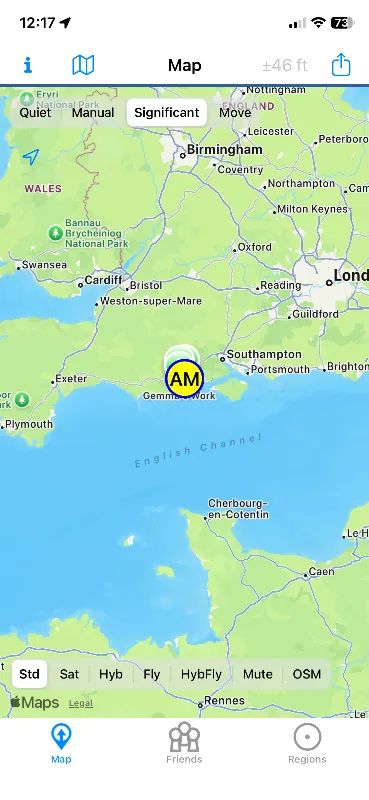
The OwnTracks app offers several location reporting modes, differing in update frequency and battery consumption. You can adjust these in the mobile app settings (usually under Preferences -> Reporting or similar):
- Significant Location Change Mode:
- How it works: Relies on the phone’s OS (iOS/Android) to notify the app about significant location changes (e.g., changing mobile towers). The OS decides what is “significant”.
- Pros: Most battery-efficient. Ideal if you don’t need real-time tracking, just general movement information.
- Cons: Updates can be infrequent and less precise. Location might not update for long periods if the phone doesn’t deem the change “significant”.
- Move Mode:
- How it works: Uses the phone’s motion sensors (accelerometer) to detect movement. When movement is detected, it checks GPS more frequently and sends updates. When stationary, it enters a power-saving mode.
- Pros: Good compromise between accuracy and battery usage. Provides more frequent updates during travel.
- Cons: Uses more battery than Significant Change mode, especially with frequent movement.
- Manual Mode:
- How it works: Sends a location update only when you manually press the “Publish” button in the app.
- Pros: Full control over when your location is shared. Minimal battery drain related to tracking.
- Cons: No automatic tracking. Requires user interaction.
Choose the mode based on your needs. For most users, Move Mode offers the best balance.
Security Aspects
Since you’re hosting your own location server, security is crucial. Here’s how we’ve addressed it in this setup:
- Transport Encryption (TLS/SSL):
- Using Nginx Proxy Manager with a Let’s Encrypt certificate ensures all communication happens over HTTPS, protecting data from eavesdropping in transit.
- Enable
Force SSLin NPM.
- Endpoint Authentication (
/pub):- The
OTR_USERandOTR_PASSvariables in theowntracks/recordercontainer enable HTTP Basic Auth, requiring a login and password to send data. - Use a strong password without special characters.
- The
- Map Access Protection:
- The Access List in Nginx Proxy Manager adds a second authentication layer required just to view the map.
- Local Mosquitto Communication:
- The Mosquitto broker is configured to accept anonymous connections, but it is not exposed externally. Only the
owntracks/recordercontainer on the same internal TrueNAS network can access it, minimising risk.
- The Mosquitto broker is configured to accept anonymous connections, but it is not exposed externally. Only the
- Data Control:
- Your data never leaves your server. You have full control.
- (Optional) End-to-End Encryption (Payload Encryption):
- You can enable payload encryption in the mobile app (
Secret encryption key). Data will be stored encrypted on the server. This requires manual decryption client-side or in integrated systems.
- You can enable payload encryption in the mobile app (
Information about Quick Setup
The OwnTracks documentation mentions an installation method called “Quick Setup”. This is a set of scripts primarily designed for rapidly deploying a complete OwnTracks environment (MQTT + Recorder) on a standard VPS server (e.g., Debian, Ubuntu).
Why didn’t we use Quick Setup on TrueNAS?
- Container Management: TrueNAS SCALE has its own integrated application (container) management system. Using “Custom App” and official apps (like Mosquitto from TrueCharts) provides better integration with the TrueNAS UI, resource management, updates, and storage in a way native to the system.
- Flexibility: The “Custom App” method offers more control over the configuration of individual components and resources.
- Environment: Quick Setup scripts are optimised for typical Linux systems on a VPS, not the specific environment of TrueNAS SCALE.
Installation via “Custom App” and catalogue apps is more suitable for TrueNAS SCALE.
Adding Family Members
Repeat Step 4 on the family member’s phone:
- Use the same details in the Connection section (URL,
OTR_USER,OTR_PASS). - Set unique values in the Identification section (
UserID,DeviceID,TrackerID).
Troubleshooting
- App not connecting (HTTP):
- Check the URL (
/pub!), UserID, Password (no special chars!). - Check Cloudflare DNS record status (“DNS only”).
- Check
owntrackscontainer logs and mobile app logs.
- Check the URL (
Connection refusederrors inowntrackslogs:- Ensure the
Mosquittocontainer is running. - Check that
OTR_MQTT_HOSTandOTR_MQTT_PORTin theowntracksconfig point to the correct TrueNAS IP and port (1883). Ensure there are noOTR_MQTT_USERorOTR_MQTT_PASSvariables.
- Ensure the
- Cannot see map (401, 403 error):
- Log in to the map using the credentials from the Access List in NPM.
- Cannot see map (502, 504 error):
- Check if the
owntrackscontainer is running. - Check the Proxy Host configuration in NPM.
- Check if the
Summary
Congratulations! You’ve configured your own private OwnTracks location server on TrueNAS. The simplified Mosquitto configuration with anonymous local access, combined with HTTP communication and Nginx Proxy Manager security, provides a convenient and secure solution. Enjoy having control over your location data!
Leave a Reply